AGENDA/CONFERENCE DASHBOARD (z more info HRJAX)

-
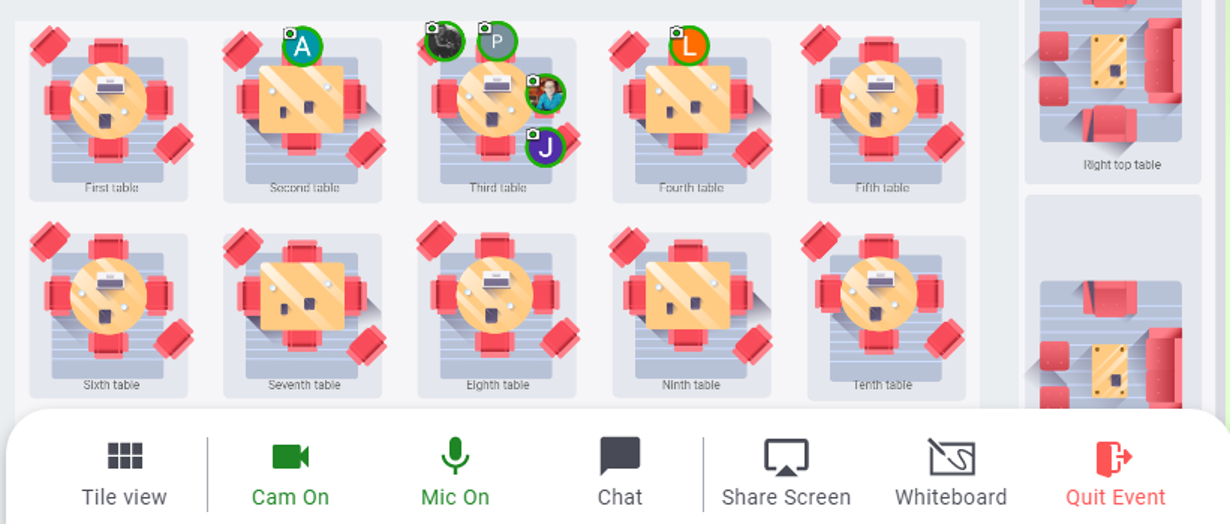
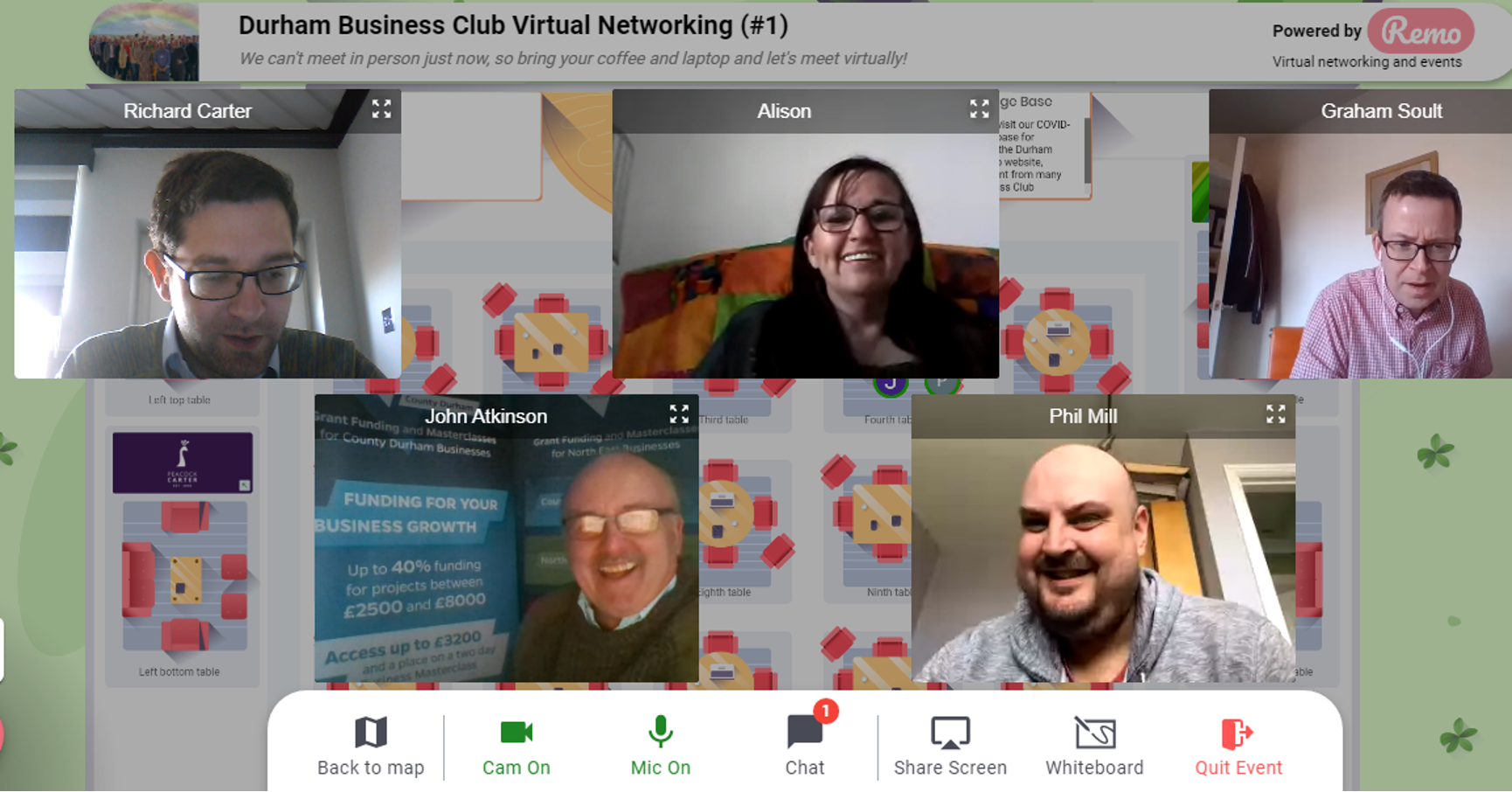
REMO (Our Virtual Platform) LOGIN INSTRUCTIONS
- INFO: "Sample" indicates more information
- CONFERENCE AGENDA
- PROGRAM
- KNOW BEFORE YOU JOIN
- REMO (Our Virtual Platform) LOGIN INSTRUCTIONS
- PRE-CONFERENCE SESSIONS
- The Challenge of Managing Agreement - Darren Finle...
- BEyond Change - Noa Ronen
- From Backroom to Boardroom - Lisa Broesch-Weeks
- MAIN CONFERENCE SESSIONS
- Opening Keynote – Elizabeth McCormick
- How to be a True Business Partner - Suzi Lemen
- Wellness in our New Normal - Cassie Bruce
- Becoming the Driving Force for Performance and Pro...
- The Human Firewall - Kevin Johnson
- Closing Keynote Annie Meehan
- ON DEMAND/”LEARNING LIBRARY” SESSIONS
- COVID in the workplace – Employment and Health and...
- Transitioning from a Traditional to a Strategic HR...
- Gender Identity - Nancy Johnson & Kimberly Doud
- The Power of Mindfulness in the Workplace - Liam G...
- Strategic HR - Chris Mulligan
- Workplace Civility – Building a Culture of Respect...
- The Art and Science of Critical Thinking - Darren ...
- Cramming for the Test: A Study Session for CBD - S...
- Breakthrough Communications During Times of Change...
- A Torch in the Darkness - Bill Krizner
- Promoting Employees’ Financial Wellness- Lateef Wa...
- Data Driven Recruitment - Justin Libak
- Looking Beyond the Now - Kirstie Settas-Jones
- Stress and its Minions - Dr. Christina Williamson
- Stop "Bucking" The System So You Can Stop Stressin...
- The Digital YOU - Mark Seguin
- Retirement Plan Legislative Update & Trends - Lisa...
- Resilience, Rhythm, and Remote Work - Alisha Ross ...
- Let’s All Learn from Amazon - Megan Richardson
- From the Heart: A Practical Approach to... - Wade ...
- Engaging Employees by.... - Loren Murfield & Lisa ...
- COVID-19 Impact on USERRA - Peter Caspari
- Coaching and Developing Your People - Rich William...
- Finding Gratitude in the Face of Uncertainty? - De...
- Course info